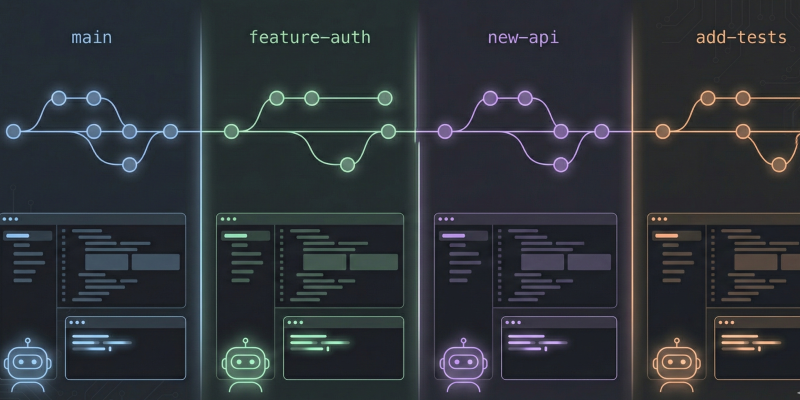
I’ve been running local coding agents like Claude Code for a while now, and one workflow change I’ve made lately isn’t about prompting or model selection. It’s git worktree. Most engineers I talk to haven’t even heard of it, and I didn’t use it myself until a few months ago.
I often have several independent features in flight on the same project at once — say a new feature, adding a new API endpoint, and creating test suites. All on separate branches. The old way of working? Check out a branch, start coding, get pulled into something else, stash everything or make some half-baked commit you’ll forget about, switch branches, lose your train of thought. You should be familiar with this.
I use a clean hub + spokes setup (one central repo, multiple worktrees): one folder is the “hub” (the bare repo and the main worktree), and each feature gets its own “spoke” worktree in a subfolder. Everything shares the same Git history and refs, but each spoke has its own working copy. More on the exact steps below.
Stashing works fine when it’s just you. But when you have an AI agent mid-way through a refactor on your working tree and you need to switch branches — that’s where things get messy.
What git worktree actually does
It’s been part of Git for years (official docs). The idea is simple: you can have the same repo checked out to multiple directories, each on a different branch, all at the same time. They share the same .git internals — history, refs, everything — but each directory has its own working tree. This means they aren’t fully sandboxed, but in practice they’re isolated enough for parallel development.
Hub + spokes setup
Do this once per project, in the folder you want to be the hub (e.g. ~/code/my-project).
1. Clone as a bare repo into this folder:
| |
2. Configure the bare repo to allow worktrees:
| |
3. Initialize the main worktree:
| |
4. Create worktrees for features:
| |
Each git worktree add -b <branch> <path> main creates a new directory, checks out a new branch based on main, and puts the working copy there. You cd into that directory and you’re on that branch. Your main worktree stays exactly as you left it — dirty files, staged changes, all untouched.
I keep feature worktrees as sibling folders with a -wt suffix (auth-wt, new-api-wt, tests-wt). Nothing fancy, just consistent enough that I don’t lose track.
Where it gets interesting: running agents in parallel
So instead of having one agent work on one branch while I sit and wait, I set up a worktree per feature and fire up an agent in each:
| |
One terminal per worktree, one agent per terminal. They don’t know about each other, they can’t step on each other’s files, and I rotate between them checking output and steering as needed. My main directory stays clean the whole time.
Committing, pushing, and cleaning up
Do all your git operations — add, commit, push, status — inside the worktree folder, not in your main repo. Each worktree is a full working copy of its branch. If the agent’s changes live in ~/code/my-project/auth-wt/, that’s where you run git:
| |
When the feature is done and pushed, clean up the worktree. Run git worktree remove from your main worktree (or the hub folder), pointing at the path you want to remove:
| |
That deletes the worktree folder. The branch and its commits stay in the repo and on the remote — you’ve already pushed them. You can merge the branch from your main checkout whenever you’re ready, or delete the branch after merging. The worktree was just a temporary workspace; removing it doesn’t touch the branch or its history.
Why I stuck with this workflow
The parallel speed-up is obvious. But there are a couple of things I didn’t expect.
In my experience, agents produce better results when they start from a clean state. No half-committed files from another branch, no untracked junk sitting around. The worktree gives each agent exactly what’s on that branch and nothing else. Sounds minor, but I noticed fewer confused outputs once I started doing this.
When an agent goes sideways — and they do — I just nuke that worktree (after pushing anything worth keeping) and start over. It doesn’t affect anything else. Compare that to untangling an agent’s bad changes from your only working copy while trying to remember what was yours and what wasn’t.
I’ve also started using this to compare approaches. Same branch point, two worktrees, two agents with different instructions. Diff the results, keep the one that’s better. Doing that without worktrees would be a pain involving branches, cherry-picks, and a lot of manual switching.
And one thing people miss: my main checkout stays on main through all of this. I’m never one absent-minded git push away from shipping a half-finished experiment.
Worktree habits that stuck
Name your worktree directories after the branch. When you’ve got four terminals open, you need to know which is which immediately.
Clean up when you’re done. git worktree list, find the ones you don’t need, git worktree remove them. Git won’t let you check out a branch that already has an active worktree elsewhere, and the error message it gives you isn’t great — so just stay on top of it.
| |
Your editor won’t follow you — if you cd into a worktree from the terminal, VS Code (or whatever you use) stays on your original directory. Open the worktree folder explicitly when you want to work there.
Keep an eye on resource usage. Three agents running at once means three sets of API calls, three processes chewing through tokens. I check in every few minutes to make sure nobody’s going in circles.
Why I think this matters
In my setup, agents are getting good enough that the bottleneck isn’t just “can it do the task” anymore. It’s “how do I run several of them without everything colliding.” Git worktrees solve that at the filesystem level — no special tooling, no agent-specific setup, just Git giving each one its own workspace.
I started doing this to get more out of coding agents on my projects. Now it’s just how I work when I’m developing multiple things at once. If you’re already using coding agents day to day, it’s one of the highest-leverage workflow changes I’ve found.
| |
Give it a shot next time you’ve got work happening on multiple branches.
Do agents already use worktrees?
Many local and cloud-based coding agents operate in isolated copies of a repository — sometimes through full clones, temporary sandboxes, or other workspace mechanisms. Conceptually, this solves a similar problem to Git worktrees: allowing parallel changes without interfering with the main working directory.
The advantage of setting up worktrees yourself is control. You can explicitly decide how to split the work and run different agents on different features in separate directories.
For example, you might prefer one agent for frontend layout tasks and another for broader architectural changes. Managing the worktrees yourself lets you choose the right tool for each task, rather than relying on a single agent’s workflow.